The short answer
Starlink bypass mode switches off the Starlink router’s Wi-Fi and routing, so your own router (MikroTik, TP-Link, Ubiquiti or another brand) runs the network. You turn it on in the Starlink app, and the only way to undo it is a factory reset. Bypass does not remove CGNAT, so port forwarding fails on Residential. Priority plans, which most new Nigerian customers are on, offer a public IPv4 option, though not a true static IP: it can change.
When do you need your own router with Starlink?
For most homes, the Starlink router is enough: Router 3 covers up to about 297 m², takes up to 235 devices, and Starlink mesh nodes extend it. Your own router earns its place when you need control the Starlink router does not offer. It has no port forwarding, no MAC filtering (allowing or blocking devices by hardware address), no VLANs (separate networks on the same cables) and no way to change the range of addresses it hands out.
- Business networks. Separate networks for staff, guests, tills and cameras, with firewall rules between them.
- CCTV, servers and hosting a VPN. Anything people must reach from outside. This also needs a public IP (see the CGNAT section). A VPN app on a laptop connects outwards and normally works without your own router.
- Failover with fibre or 5G. One line takes over when the other fails.
- Paid or voucher Wi-Fi. Captive portals and voucher systems run on third-party routers. If you plan to sell access, read the rules in our guide to starting a Starlink hotspot business first.
- Another brand’s mesh. Starlink says Router 3 is not compatible with third-party mesh systems, so that brand’s router or controller should be in charge.
Your own router will not make the satellite link faster; the top speed is set between the dish and the satellites. If your only problem is weak Wi-Fi in a large house, Starlink mesh is often the simpler fix. Our guide to Starlink Wi-Fi and networking compares both routes.
How to connect your own router to each Starlink kit
In every case, keep Starlink’s own router or power supply connected, because that is what powers the dish.
| Kit | Where your router connects | Notes |
|---|---|---|
| Standard Actuated (Gen 2) | Through the Starlink Ethernet Adapter, sold separately | The Gen 2 router has no Ethernet port and powers the dish, so it stays in the set-up. |
| Standard (Gen 3), now sold as Standard 4 X with Router 3 | Either of Router 3’s two LAN ports, under the removable cover | Turn on bypass mode if your router should do all the routing. |
| Standard 4 (same dish with a Router Mini) | The Router Mini’s LAN port. Reports from abroad say a third-party router can instead take the power supply’s second port, without bypass. | That port carries Starlink’s own PoE power, which may not suit a non-Starlink router. We don’t recommend it unless Starlink or your router’s maker confirms it is safe; use the Router Mini’s LAN port. |
| Starlink Mini | The Ethernet port on the dish, with Starlink’s Mini Ethernet cable or your own | With an ordinary RJ45 plug, Starlink says the Mini loses its IP67 (waterproof) rating, so protect the port. |
The adapter for older kits and the wired options for every kit are covered in our Starlink Ethernet adapter guide.
Connecting Starlink to a switch or a laptop
You do not need bypass mode to wire devices. Plug a laptop or a network switch into a LAN port and the Starlink router gives each device an address. Any unmanaged gigabit switch will do; avoid old 100 Mbps switches, which cap every wired device below what a good Starlink connection delivers. Never plug the dish’s own cable into a switch or a normal router: a Standard dish draws 75-100 W on average and is fed by Starlink’s router or power supply, not by standard PoE (Power over Ethernet).
What is Starlink bypass mode?
Normally the Starlink router is both the Wi-Fi and the router that hands out addresses. Plug your own router in without bypass and you get two routers in a row (double NAT). That is fine for browsing but makes port forwarding, some VPNs and console gaming more awkward. Bypass stops the Starlink router from routing, so your router receives the connection directly. When you switch it on:
- Starlink Wi-Fi turns off. You cannot keep the Wi-Fi and bypass only the routing.
- Starlink mesh nodes stop working, because they only work with the Starlink router.
- The app shows “Router unreachable”. This is expected; our article on the Router unreachable message covers its other causes.
- Starlink’s content filtering (malware and adult-content blocking) no longer applies.
- The Starlink router stays connected and keeps powering the dish. Router 3’s light shows violet, then turns off after about an hour.
How to turn on Starlink bypass mode, and how to undo it
Set up your own router first, because the Starlink Wi-Fi goes off.
- Connect your router’s WAN (internet) port to a Starlink LAN port, or to the adapter or Mini port in the table above.
- Set your router’s WAN to get its address automatically (DHCP).
- Join the Starlink Wi-Fi on your phone and open the Starlink app.
- Find Bypass mode in the app’s Settings. Its exact place changes between app versions: guides have reported it near the bottom of Settings or under a Router tab.
- Turn the toggle on, confirm, then check that your router shows an internet connection.
To leave bypass mode, you must factory reset the Starlink router. Starlink’s setup guides say so, and there is no “off” switch in the app, whatever some websites claim. On Router 3, press the reset button with a paper clip. The router then broadcasts an open “STARLINK” network and you set the Wi-Fi name and password again.
On the Starlink Mini, Starlink’s documents do not spell out how bypass behaves on the built-in Wi-Fi, so check the app on your kit or ask us.
CGNAT, public IP and static IP on Starlink
On Residential plans, Starlink gives you IPv4 through carrier-grade NAT (CGNAT): many customers share one public IPv4 address, and your router’s WAN address sits in a shared range (reported as 100.64.0.0/10). Outgoing traffic works normally, but incoming connections cannot reach you. That is why port forwarding fails on Residential, even with your own router in bypass mode. Most new customers in Nigeria, though, are on Priority (business) plans, since Residential is not open to new customers in most locations. These offer a public IPv4 address as an option; ask us whether it is switched on for your plan.
| Plan | Public IPv4 address? | IPv4 port forwarding | Static IP? |
|---|---|---|---|
| Residential | No: shared through CGNAT | Not possible | No |
| Priority (business) | Optional: switched on in the account. Nigerian press lists a “publicly routable IPv4 address” with the Business (Priority) plan. | Possible with your own router | No: assigned automatically, and can change |
Can you get a static IP from Starlink?
Not on Residential or Priority plans. Even a Priority plan’s public IPv4 address is assigned automatically (by DHCP) and can change. If a fixed address is essential, ask us before you buy. If you host a service, use dynamic DNS on your router, which keeps a web address pointed at your current IP, or keep a fixed-IP fibre line for that one service.
IPv6, CCTV and homelabs
In bypass mode, a third-party router typically also receives a public IPv6 prefix (reported as a /56), so devices get public IPv6 addresses and your firewall decides what comes in. That helps only when whoever connects in also has IPv6. Most CCTV recorders and smart devices reach their apps through an outward connection to the maker’s cloud, which works behind CGNAT. Anything that needs an open port needs a public IPv4 address (the Priority plan option), IPv6, or a VPN tunnel that connects outwards to a server elsewhere.
Setting up MikroTik, TP-Link, Ubiquiti and Fritzbox with Starlink
We know of no brand-specific set-up guides from Starlink. The same settings work on all of them:
- WAN as a DHCP client. On MikroTik, a DHCP client on the port facing Starlink; on TP-Link, “Dynamic IP”; on UniFi, WAN set to DHCP.
- IPv6 with prefix delegation. Enable IPv6 on the WAN (SLAAC or DHCPv6) and request a delegated prefix.
- A route to the dish. Add a static route for 192.168.100.0/24 out of the WAN port. The dish answers at 192.168.100.1, and without the route the app may show it as disconnected.
- A different LAN range if you skip bypass. The Starlink router’s 192.168.1.x network cannot be changed, so give yours another range (MikroTik’s default 192.168.88.x, or 10.0.0.x) to avoid clashes.
Fritzbox models such as the 7590 and 7530 are DSL routers, but work behind Starlink when set to take internet from an external modem or router through LAN 1.
Is there a Starlink router login page?
No. Apart from the first-setup page that opens when you join the “STARLINK” network, there is no web admin page or default login. All settings live in the Starlink app, and you must be on the Starlink Wi-Fi to change them.
Failover and load balancing: Starlink with fibre or 5G
A common business set-up is Starlink beside fibre or 5G, with a dual-WAN router (two or more internet ports) in charge. With failover, fibre carries everything and traffic moves to Starlink only when fibre fails; this is the simplest arrangement. With load balancing, users are spread across both lines, but some banking sites and VPNs dislike an address that changes mid-session, so balance per connection or send specific traffic down one line.
Put the dish, both routers and the switch on the same inverter or UPS; failover is no use if the router goes off when NEPA takes light. For whole-office planning, see our guide to Starlink for business in Nigeria.
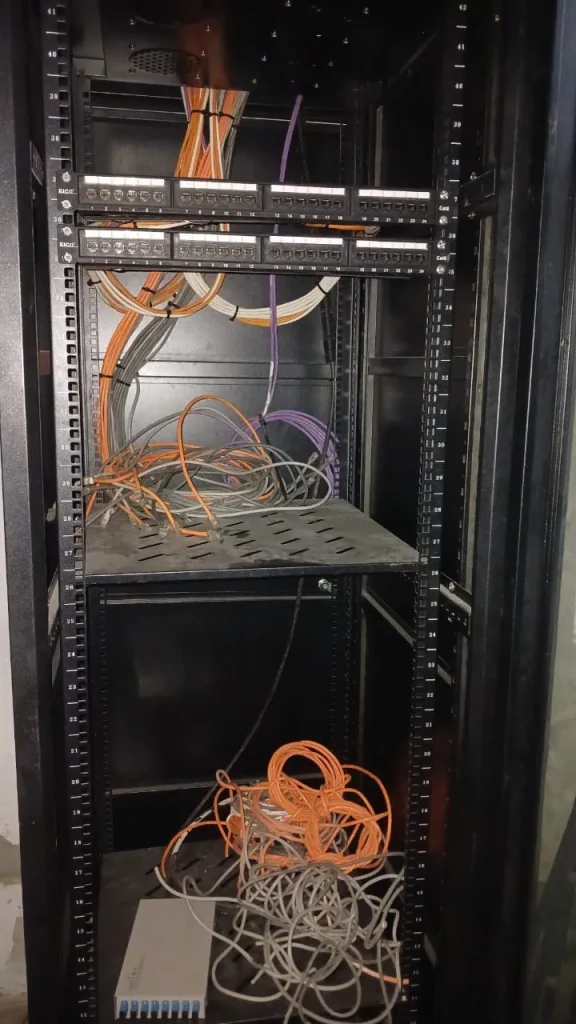
See the full job on our commercial building installation page.
Need help setting up your own router?
ZuraLink Limited’s installers set up business networks on Starlink anywhere in Nigeria, from mesh Wi-Fi and ceiling access points to Cat6 cabling and network racks, and can plan where your own router fits in. See our Starlink business service, WhatsApp us or call 0802 859 5303, 24 hours a day.
Starlink Bypass Mode FAQs
Can I use my own router with Starlink?
Yes, on every current kit, through a LAN or Ethernet port. The older Gen 2 kit needs the Starlink Ethernet Adapter first.
Does Starlink need its own router?
Starlink’s router or power supply must stay connected because it powers the dish. In bypass mode the router simply passes the connection to yours.
How do I turn off Starlink bypass mode?
Factory reset the Starlink router. There is no toggle to switch it back, so plan the change first.
Can I port forward on Starlink?
Not on Residential, because of CGNAT. On a Priority plan you can, once the public IPv4 option is switched on and your own router is in place.
Can Starlink Mini work without a router?
Yes. The Mini has Wi-Fi built in. To add your own router or a switch, run a cable from its Ethernet port.