The short answer
Only the older Gen 2 (Standard Actuated) Starlink needs the Starlink Ethernet Adapter, because its upright router has no Ethernet port. The Standard (Gen 3) Router 3 has built-in LAN ports, the Router Mini has one LAN port, and the Starlink Mini has its own latching LAN port for the Mini Starlink Ethernet Cable. For an adapter price, ask us.
Which Starlink needs an Ethernet adapter?
| Kit | Router | Wired option | Adapter needed? |
|---|---|---|---|
| Gen 2 (Standard Actuated, dish on a motorised mast) | Upright Gen 2 router with no Ethernet port | Starlink Ethernet Adapter, sold separately | Yes |
| Standard (Gen 3) with Router 3 (now called Standard 4 X) | Flat Router 3 | Latching LAN ports under a removable cover; the dish cable uses the one marked with the antenna symbol | No |
| Standard 4 (same dish, with Router Mini) | Small Router Mini on a stand | One latching LAN port and one WAN port | No |
| Starlink Mini | Built into the dish | One latching LAN port on the dish, used with the Mini Starlink Ethernet Cable (15 m, not in the box) or your own cable | No adapter, but you need an Ethernet cable |
Not sure which you have? The quickest clue is the router: the Gen 2 router stands upright and has no Ethernet port, while the Router 3 is flat with its ports under a rubber cover. Our guide to which Starlink you have and where to find the kit number covers the rest, and our Starlink kits guide explains what each kit includes.
Gen 2: using the Starlink Ethernet Adapter
The Gen 2 system has no Ethernet port, and Starlink’s own setup guide for Gen 2 kits notes that “an ethernet adapter can be purchased from the Starlink shop”. The adapter is the only way to plug a computer, switch or your own router into a Gen 2 system.
- Keep the Gen 2 router in place. It powers the dish, so it must stay in the setup even if you add your own router.
- Upgrading the router? Starlink’s guide says that to use a Router 3 as the main router on a Gen 2 kit, you also need the Ethernet adapter, and then you switch on bypass mode in the app.
- Price and stock: we don’t publish a fixed price for the adapter, so ask us and we will quote.
Standard (Gen 3): Router 3 and Router Mini ports
No adapter is needed. On the Router 3, lift the removable cover on the back to reach the latching LAN ports. The dish cable goes into the port marked with the antenna symbol; plug your own Ethernet cable into the other LAN port. The ports latch, so the plug clicks in and stays put. If you need more than one wired device, add a gigabit network switch to that port and run everything from the switch.
The Router Mini, used in the newer Standard 4 kit, has one LAN port and one WAN port. In that kit the WAN port normally takes the cable from the Starlink power supply, so plug your device into the LAN port. For more than one wired device, use a switch.
Starlink Mini with an Ethernet cable
The Mini has no separate router, so the LAN port is on the dish itself, under a cover called the Starlink Plug. Starlink sells a 15 m Mini Starlink Ethernet Cable that clips into this port, seals it against water, and connects the Mini to a Starlink router or to a third-party router or device.
You can use your own Ethernet cable instead, but Starlink states that the Mini is then no longer rated IP67, so water and dust protection is no longer assured. Outdoors, we recommend the official cable.
The Mini has no USB data connection: Starlink’s USB-C cable only carries power, from a USB-C source into the Mini’s DC socket. If your laptop has no Ethernet port, a USB-C to Ethernet dongle for the laptop is the answer. Powering the Mini over USB-C is covered in our guide to Starlink on 12 V and power banks.
What you can connect by Ethernet
- A desktop PC or laptop, for steady video calls and big downloads.
- A smart TV or streaming box in a room where Wi-Fi is weak.
- A network switch, to give an office or a rack more ports.
- A CCTV recorder (NVR). Recording over the local network works normally. Remote viewing through the camera maker’s cloud app usually works too, but the Starlink router has no port forwarding, so setups that need incoming connections need a third-party router and a public IP address.
- Your own router, such as a MikroTik or TP-Link, for features the Starlink router does not offer. Our guide to bypass mode, CGNAT and using your own router explains how to avoid problems such as double NAT.
- A Starlink mesh node. Starlink says a wired link between Starlink routers is best, using Cat5e or better.
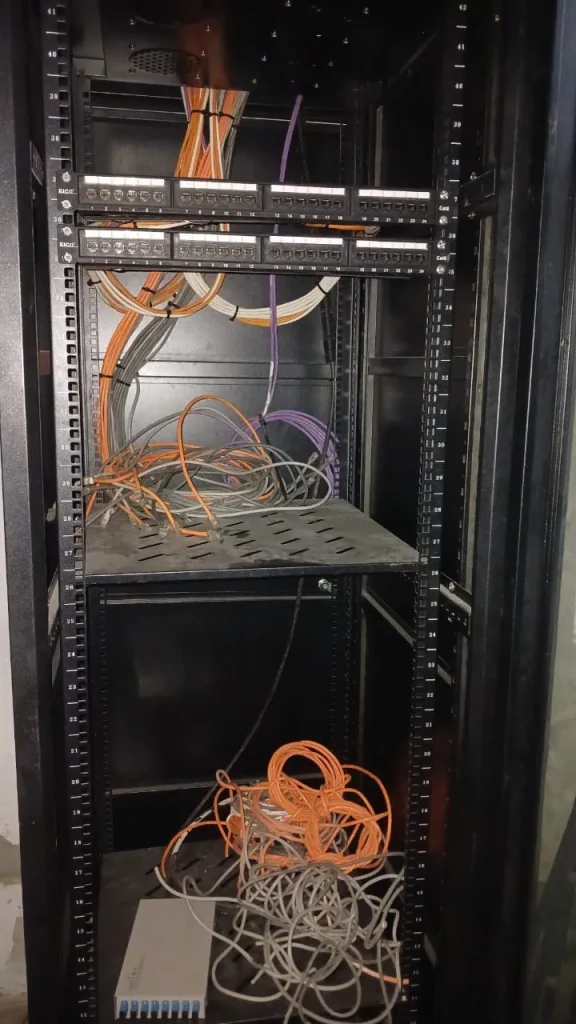
Starlink Ethernet adapter not working? Check these
- Confirm the kit. The Ethernet Adapter is for Gen 2 only. A Gen 3 or Mini kit doesn’t use it.
- Reseat every plug. Latching ports should click. The dish cable must sit fully home.
- Look at the lights on your device’s network port. No light usually means a bad cable, a dead port or no power.
- Swap the patch cable and try another device or port.
- Check the app for alerts. A poor cable connection or “slow Ethernet” alert (the wording varies between app versions) points to the dish’s own wired link running below gigabit speed, so check the Starlink cable between dish and router for damage and reseat both ends.
- Check for bypass mode. If the Starlink Wi-Fi has disappeared and the Router 3 light is violet (it turns off after about an hour), the router is in bypass mode. Starlink says a factory reset is needed to leave it.
- Power cycle the router by unplugging it and plugging it back in, as Starlink’s troubleshooting steps advise.
- Still no link? The adapter, port or cable may be faulty. Contact us or Starlink support.
Running cable for wired links
An ordinary Ethernet run can be up to 100 m long. Use solid-copper Cat6 for runs inside walls and ceilings, outdoor-rated cable for anything outside, and conduit where it might be crushed or chewed. You don’t need a crossover cable; a normal straight-through patch cable works with modern equipment. Starlink has no coaxial (TV aerial) connection, so old coax runs can’t be used directly.
On the Standard kits, the cable between the dish and the router is a different matter: use Starlink’s own cable there. Lengths, routing and why ordinary Cat6 is a risk on that side are covered in our guide to Starlink cables and lengths.
When to wire instead of using Wi-Fi
Wi-Fi is fine for phones and most laptops. Wire anything that stays in one place and needs a steady connection: desktop PCs, consoles, CCTV recorders, a smart TV at the far end of the house, office printers and the computer that live-streams a church service. A wired laptop is also the fairest way to test your Starlink speed, because it takes Wi-Fi out of the picture. Our Starlink Wi-Fi and networking guide covers coverage and mesh in more depth.
Getting an office or building wired
For offices, schools, churches and sites, we run Cat6 cabling, fit network racks and add ceiling access points so the whole building is covered. We can also supply and set up a router or switch of your own behind Starlink. See our Starlink business networking service, or WhatsApp us for an Ethernet adapter quote. You can also call 0802 859 5303.
Starlink Ethernet FAQs
Does Starlink need an Ethernet cable?
No. The Standard and Mini kits work over Wi-Fi out of the box. Ethernet is an option for devices that need a steadier connection.
Does the Gen 3 Starlink need the Ethernet adapter?
No. The Router 3 has latching LAN ports built in, and the Router Mini has one.
How do I connect an Ethernet cable to the Starlink Mini?
Remove the Starlink Plug from the Mini’s LAN port and clip in the Mini Starlink Ethernet Cable. The other end goes to your router, switch or computer.
Can I connect Starlink to my own router?
Yes. Plug your router’s WAN port into a Starlink LAN port, or into the adapter on a Gen 2 kit, and consider bypass mode to avoid double NAT.
Do I need a crossover cable for Starlink?
No. A normal straight-through Cat5e or Cat6 patch cable is all you need.
How much is the Starlink Ethernet adapter in Nigeria?
We quote it on request. Send us a WhatsApp message with your kit type and we will confirm price and stock.